Snapchat has continued to improve its AI-powered features, and Snapchat My AI is one of the most useful tools available inside the app. It can answer questions, suggest ideas, help with planning, recommend things to do, and assist users with everyday tasks.
However, not everyone wants My AI to stay visible in their Chat feed. Some users also want to clear their previous My AI conversations or reset their experience.
In this guide, we explain Snapchat My AI features in 2026, how to use My AI, how to remove it from your Chat feed, and how to delete My AI data.
What Is Snapchat My AI?
Snapchat My AI is an AI chatbot built into Snapchat. Users can interact with it directly from the Chat screen.
My AI can help with things such as answering general questions, suggesting gift ideas, planning activities, recommending dinner ideas, and providing general assistance.
Snapchat also warns that My AI responses can sometimes be incorrect or misleading, so important information should be independently verified.
Snapchat My AI Features in 2026
My AI offers several useful features for Snapchat users.
1. Answer Questions
You can ask My AI general questions and receive conversational answers.
2. Get Suggestions
My AI can suggest gift ideas, activities, meals, and other everyday options.
3. Plan Activities
You can ask My AI to help plan trips, weekend activities, or other plans.
4. Chat With My AI
My AI works like a chatbot inside Snapchat. You can open it from your Chat screen and start a conversation.
5. Mention My AI in a Chat
If the feature is available on your account, you can mention My AI in a friend or group chat by typing @myai. My AI can respond to messages where it is mentioned.
How to Access Snapchat My AI
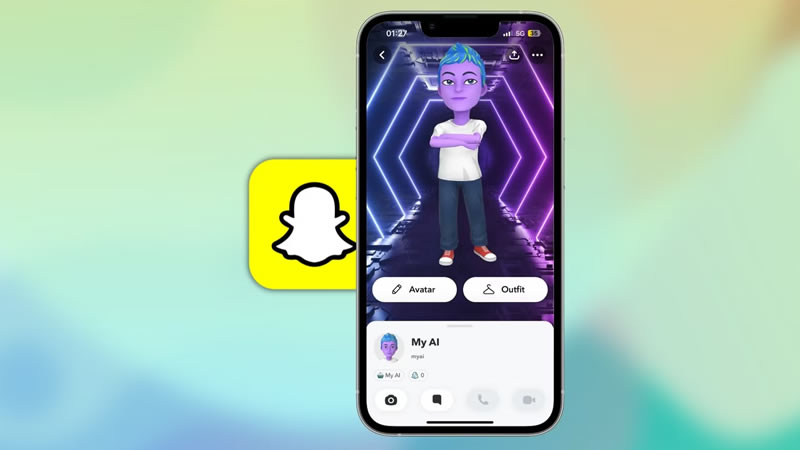
Accessing My AI is simple:
- Open the Snapchat app.
- Go to the Camera screen.
- Swipe right to open the Chat screen.
- Find My AI in your Chat feed.
- Tap My AI to start chatting.
You can also search for “My AI” if it is not immediately visible.
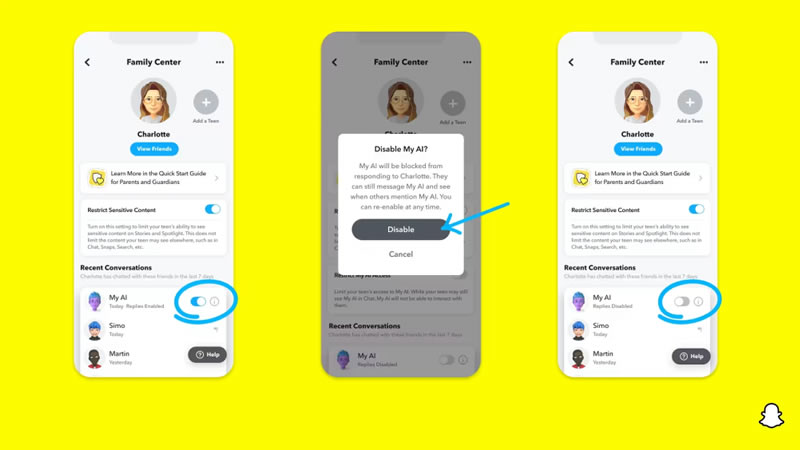
How to Turn Off Snapchat My AI
Snapchat does not currently provide a simple universal switch that completely disables My AI for every user.
Instead, you can remove My AI from your Chat feed.
Remove My AI From Chat Feed
Follow these steps:
- Open Snapchat.
- Swipe right from the Camera screen to open Chats.
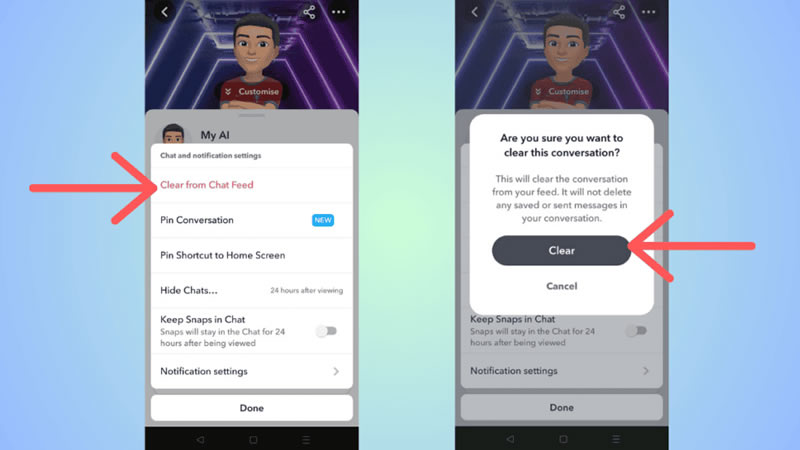
- Press and hold My AI.
- Tap Chat and Notification Settings.
- Select Clear from Chat Feed.
- Confirm the action.
This removes the My AI conversation from your Chat feed, but it does not automatically delete data you previously shared with My AI.
How to Unpin Snapchat My AI
If My AI is pinned at the top of your Chat feed and you simply want to move it away:
- Open Snapchat.
- Go to the Chat screen.
- Press and hold My AI.
- Select Chat and Notification Settings.
- Tap Unpin Conversation.
My AI will no longer remain pinned at the top of your Chat feed.
How to Reset or Delete Snapchat My AI Data
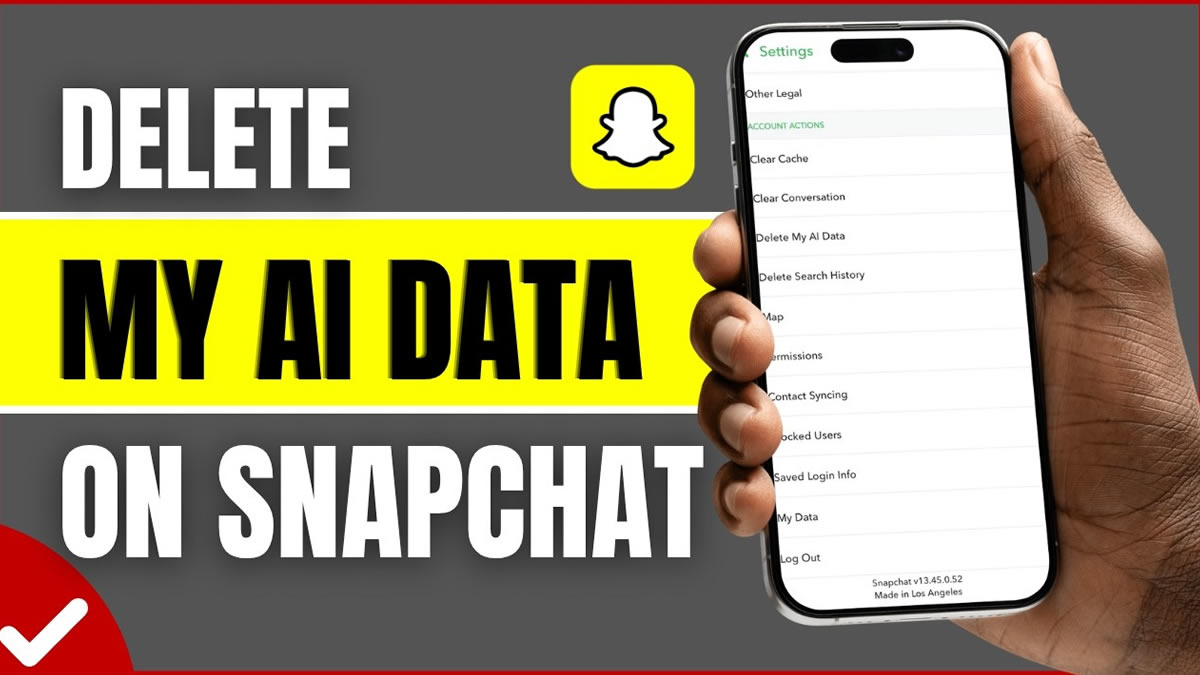
If you want to clear the data you previously shared with My AI, Snapchat provides a separate option.
On Android
- Open Snapchat.
- Tap your Profile icon.
- Tap the Settings ⚙️ icon.
- Scroll down to Account Actions.
- Tap Delete My AI Data.
- Confirm the action.
On iPhone
- Open your Snapchat Profile.
- Tap Settings ⚙️.
- Go to Privacy Controls.
- Select Delete Data.
- Tap Delete My AI Data.
- Confirm.
Snapchat says deletion of relevant My AI data from its servers can take up to 30 days.
How to Add My AI Back to Snapchat
If you removed My AI from your Chat feed but later want to use it again, you can search for My AI.
Open Snapchat and tap the search icon. Search for “My AI,” then open the chat and send a message. Snapchat says this can add My AI back to your Chat feed.
You can also press and hold My AI and choose Pin Conversation if you want it pinned again.
Is Snapchat My AI Safe to Use?
My AI can be useful for everyday questions and ideas, but users should avoid sharing confidential or sensitive information with it.
Snapchat also notes that AI responses may sometimes be incorrect, harmful, biased, or misleading. Therefore, users should verify important information before relying on an answer.
What Happens When You Clear My AI From Chat?
Clearing My AI from the Chat feed mainly removes the conversation from your visible Chat feed. It does not mean that all previously shared My AI data has automatically been deleted.
If you want to delete previously shared My AI content, use the Delete My AI Data option in Snapchat Settings.
Snapchat My AI vs. Regular Snapchat Chat
My AI is different from chatting with a normal Snapchat friend. It is an AI-powered chatbot designed to answer questions and provide suggestions.
You can use it for quick information, brainstorming, planning, and general assistance without needing to start a conversation with another person.
Final Words
Snapchat My AI Features 2026 provide Snapchat users with an AI assistant directly inside the app. My AI can answer questions, provide suggestions, help with planning, and respond when mentioned in supported chats.
If you do not want My AI visible in your Chat feed, you can unpin it or clear it from the Chat feed. If your goal is to remove previously shared information, you should separately use Snapchat’s Delete My AI Data option.
Remember that Snapchat’s menus and features can change with app updates, so the exact wording or location of an option may vary between accounts and devices.
Frequently Asked Questions
1. Can I completely turn off Snapchat My AI?
Snapchat currently does not provide a universal switch that completely disables My AI for all users. You can remove it from your Chat feed or unpin it.
2. How do I remove My AI from Snapchat?
Press and hold My AI in the Chat feed, open Chat and Notification Settings, and choose Clear from Chat Feed.
3. How do I reset Snapchat My AI?
To clear previously shared My AI data, open Snapchat Settings and use Delete My AI Data. The exact menu location can differ between Android and iPhone.
4. Can I get Snapchat My AI back after removing it?
Yes. Search for My AI, open the conversation, and send a message. You can also pin it again to your Chat feed.
5. Does clearing My AI delete my data?
No. Clearing My AI from the Chat feed only removes the conversation from the feed. To delete previously shared My AI data, use the dedicated data-deletion option in Settings.
6. What can Snapchat My AI do?
My AI can answer questions, provide suggestions, help with planning, recommend ideas, and perform other conversational tasks.
7. Should I share private information with My AI?
It is better not to share confidential or sensitive information with My AI. Snapchat specifically advises users to avoid sharing such information.
8. Where can I find My AI on Snapchat?
Open Snapchat and swipe right from the Camera screen to open the Chat screen. My AI can be accessed there, or you can search for it.
9. Where can I find useful information about Android apps?
You can explore Best Android apps and useful app guides on APKWraz, where you can find information about Android apps, features, updates, reviews, and helpful guides for Android users.
10. Which Best Android app is best for auto-captions?
CapCut provides the fastest and most accurate free AI auto-captions for video subtitles. Check out video tutorials on our Facebook Page.